
Managing team members
Use team management to control who can help you manage your Sotion workspace. This article covers the core tasks you will typically need: inviting a teammate, choosing the right role for them, and removing access when it is no longer needed.
Invite team members
Invite a team member when someone needs access to help manage your Sotion setup.
Sign in to your Sotion dashboard.
Navigate to [Your Team] > Team Members where your team members are managed.
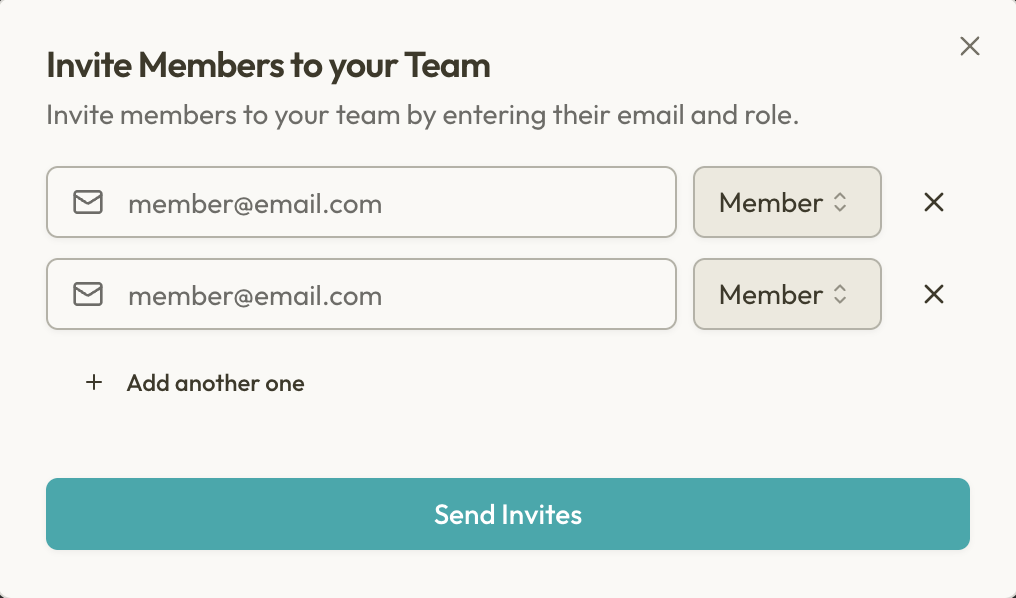
Select the option to invite new team members.
Enter one or more email address.
Choose the role you want to assign to each team member.
Send the invitation.
After the invitation is sent, ask your teammate to accept it using the email they received.
Assign roles
Assign each person the role that matches the work they need to do. Give broader access only to people who need to manage settings, billing, publishing, or membership configuration.
We currently support two team member roles:
Role | Permissions |
|---|---|
Owner |
|
Member |
|
* The Manage Sites permission will allow for more granular control over features in future.
Remove team members
Remove a team member as soon as they no longer need access. This helps protect your sites, settings, and member data.
Open your team member management area.
Find the person you want to remove.
Open their actions menu or profile.
Select the option to remove their access.
Confirm the removal.
If the person still needs limited access, change their role instead of removing them completely.
Related membership features
Sotion is built for Membership Management for Notion and supports multiple ways to control access to your published Notion site. These access options include Password Protection, Email Sign Up & Login, and Invite Only Access.
If you are trying to manage access for visitors or site members rather than teammates in your Sotion workspace, use your site's membership and access settings instead of team management.