
Site Dashboard
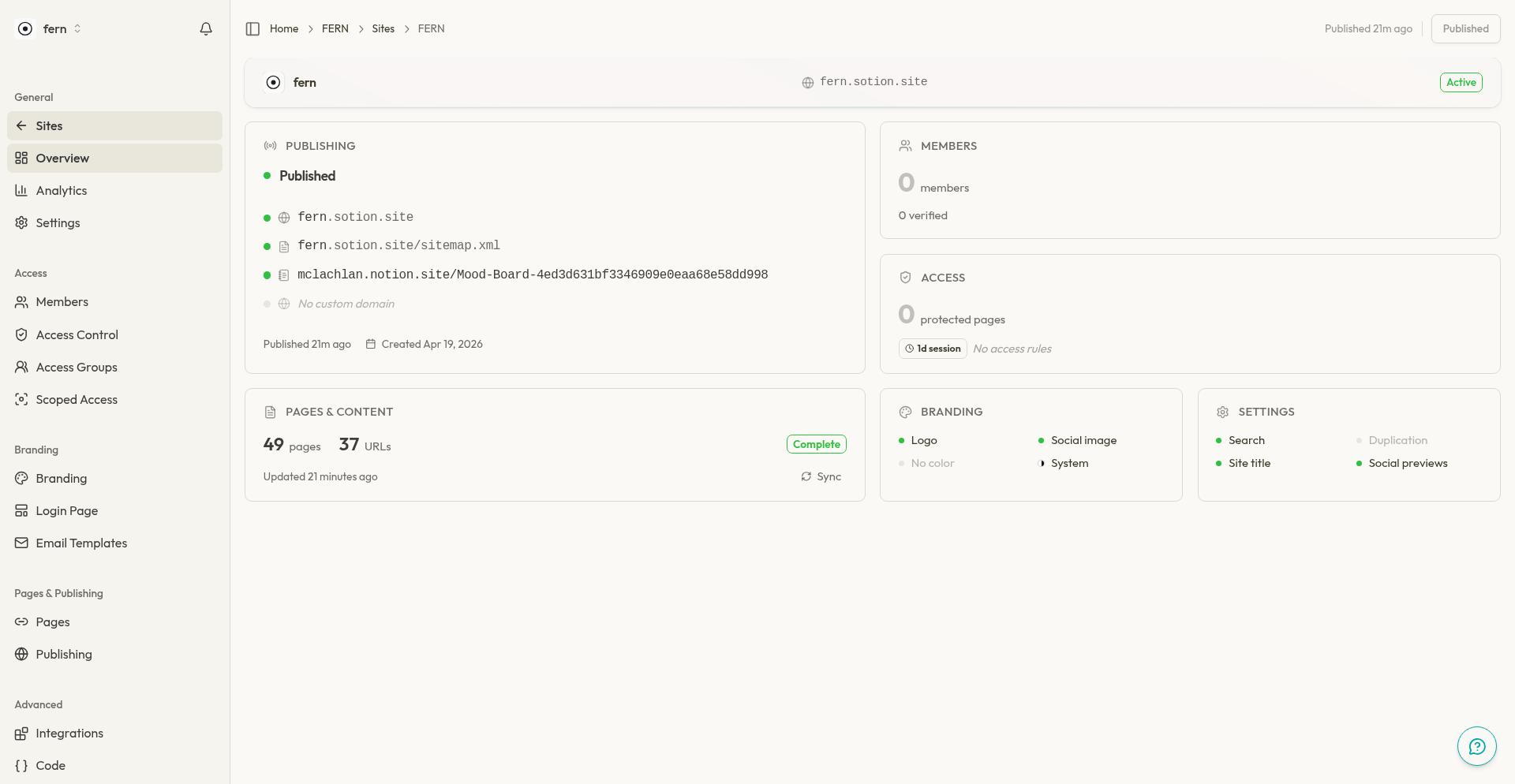
The Site Dashboard overview page is the landing page for each of your Sotion sites. It provides a quick snapshot of your site's status and shortcut cards to navigate to key management areas.
Page Layout
The overview page has three main areas: the breadcrumb & publish top bar, the site details card, and the navigation grid. Each section gives you immediate visibility into your site's state and quick access to management tasks.
Publish Top Bar
The header at the top of the page shows your site's publish status and provides the publish action button. The publish status and button will always be visible to allow you to easily publish at all times.
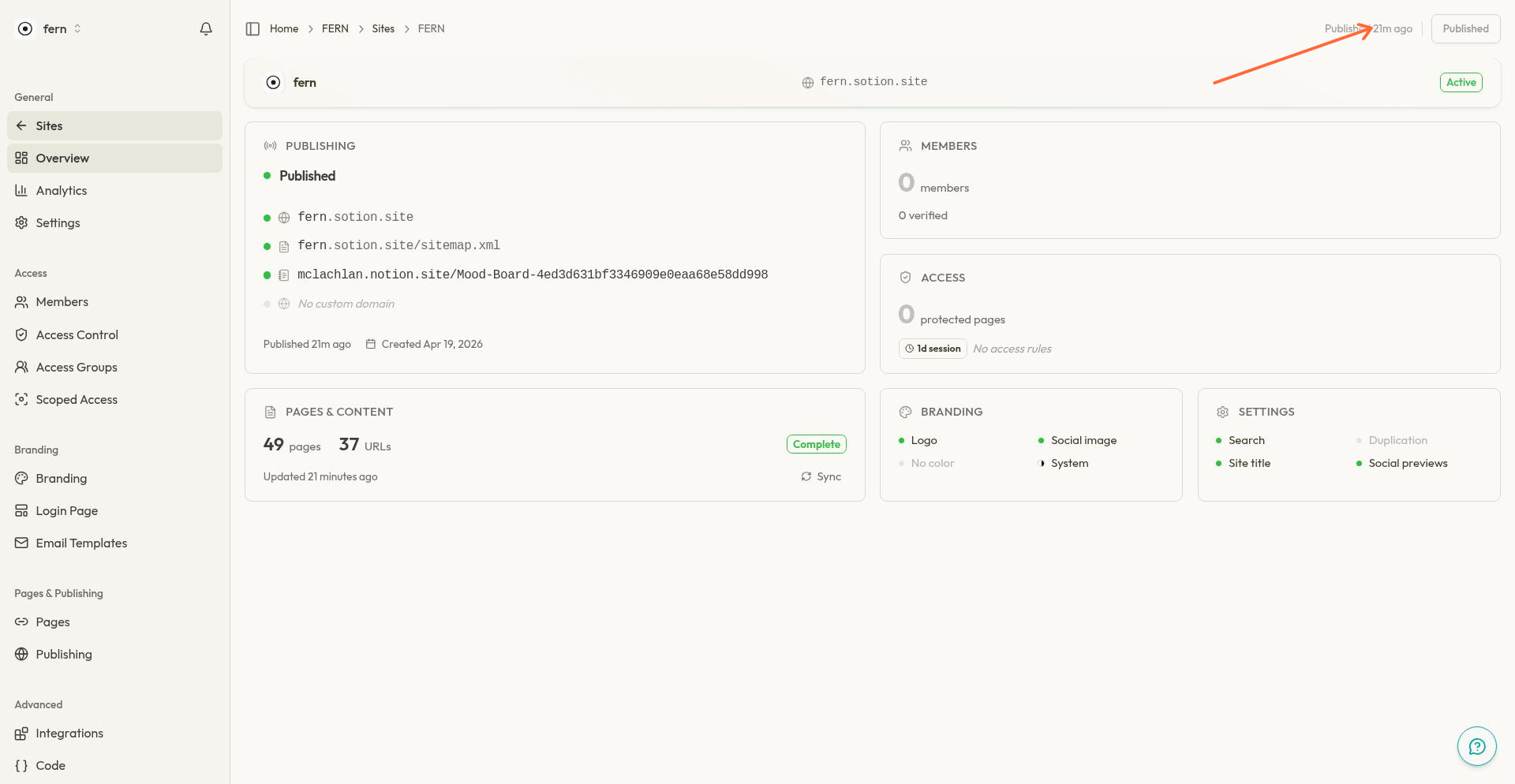
When your site has unpublished changes, the header displays a "Publish Changes" button. After publishing, it shows "Published" with a relative timestamp (such as "Published 21m ago"). Click the button to publish your configuration changes to the live site.
Any changes made in the dashboard, such as setting changes, branding updates, and access rules, require publishing before they take effect.
Site Details Card
The site details card displays your site's name, current status, and live URL.
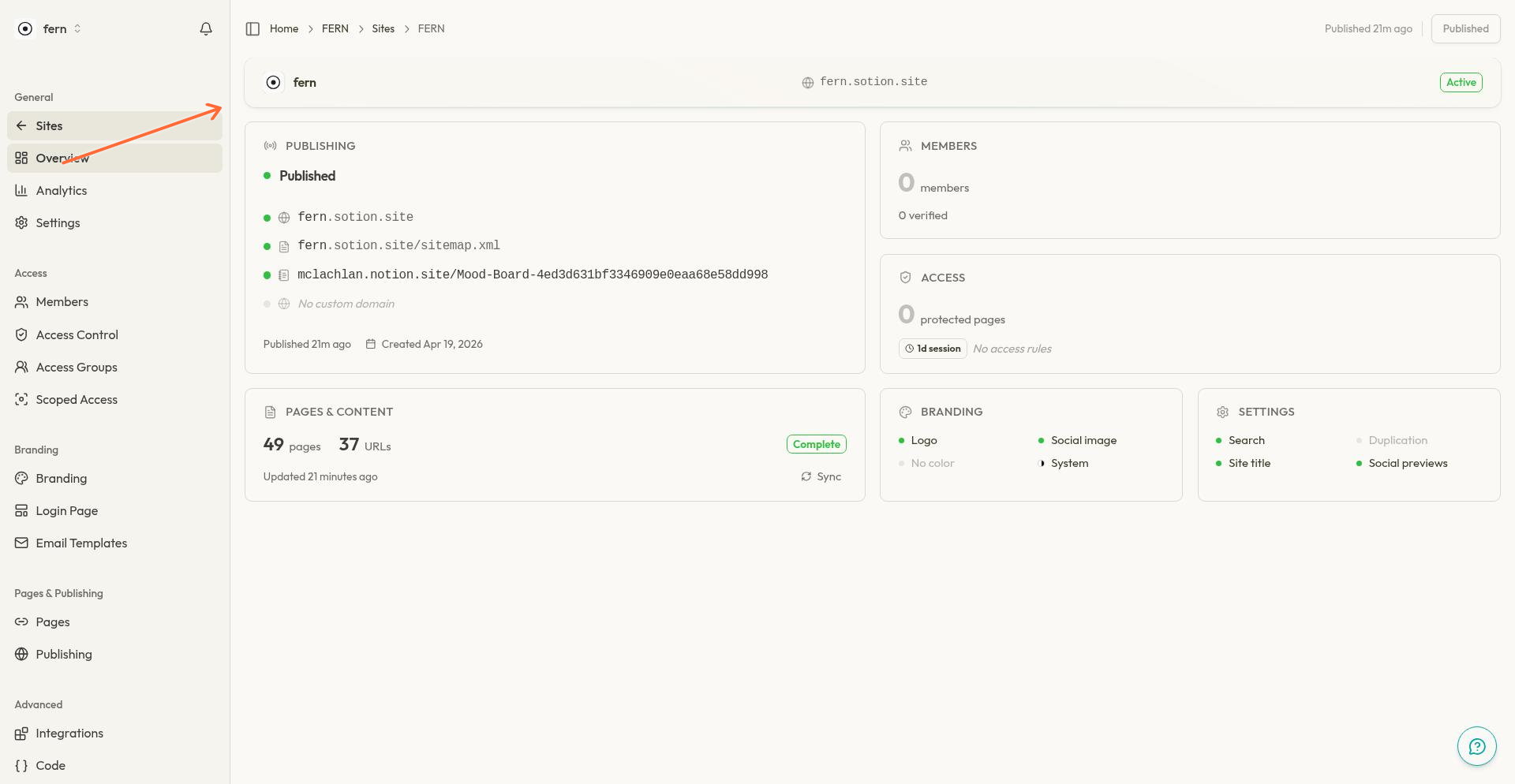
The card shows:
Site name: The name you've given your site
Status: Current site state (Active, Provisioning, Error, or Draft)
Domain link: Click to open your live site in a new tab
Navigation Grid
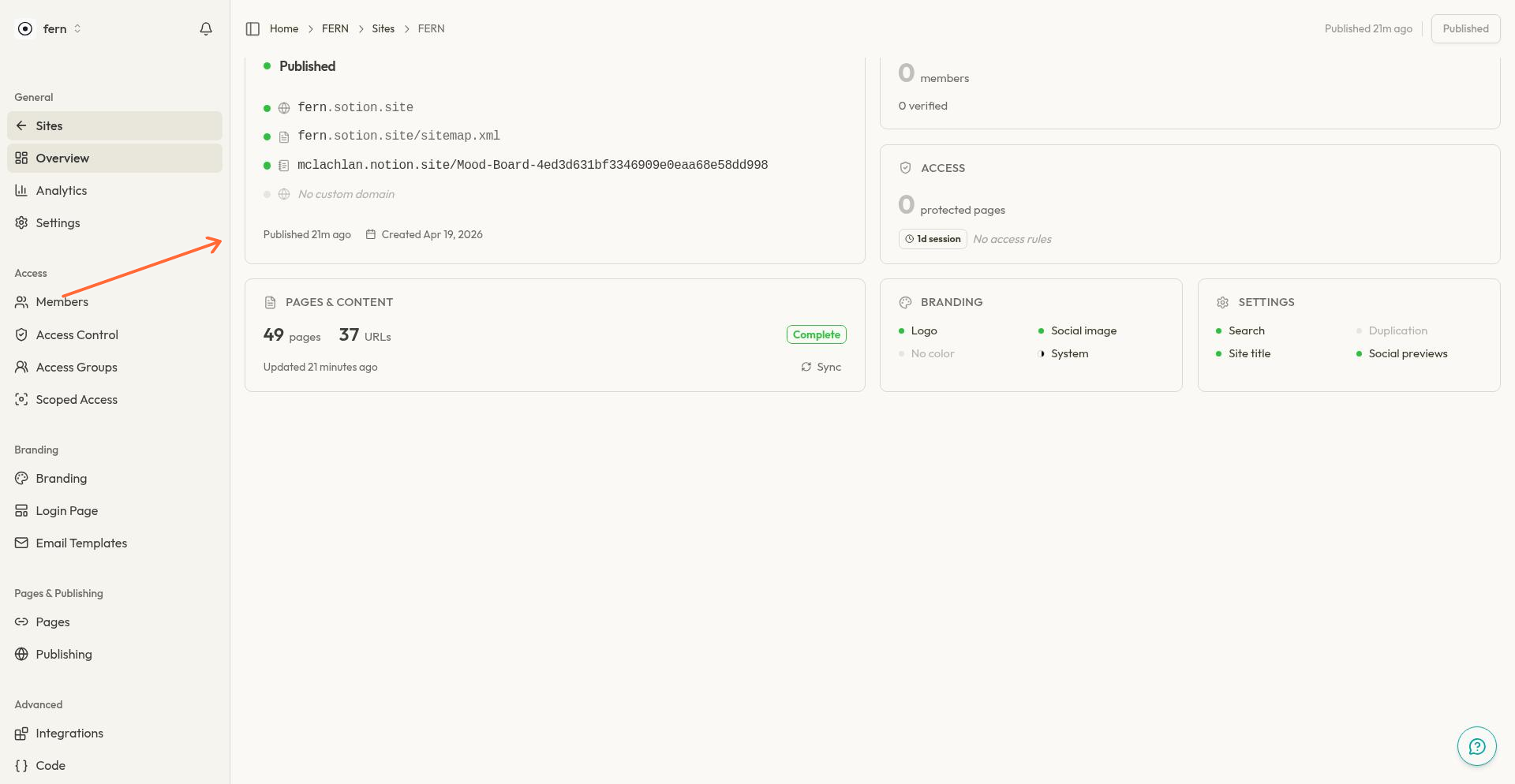
The overview grid provides six shortcut cards that link to the main management areas of your site. Each card shows a snapshot of relevant metrics or status.
Publishing Card
Shows your site's publishing status and domain configuration.
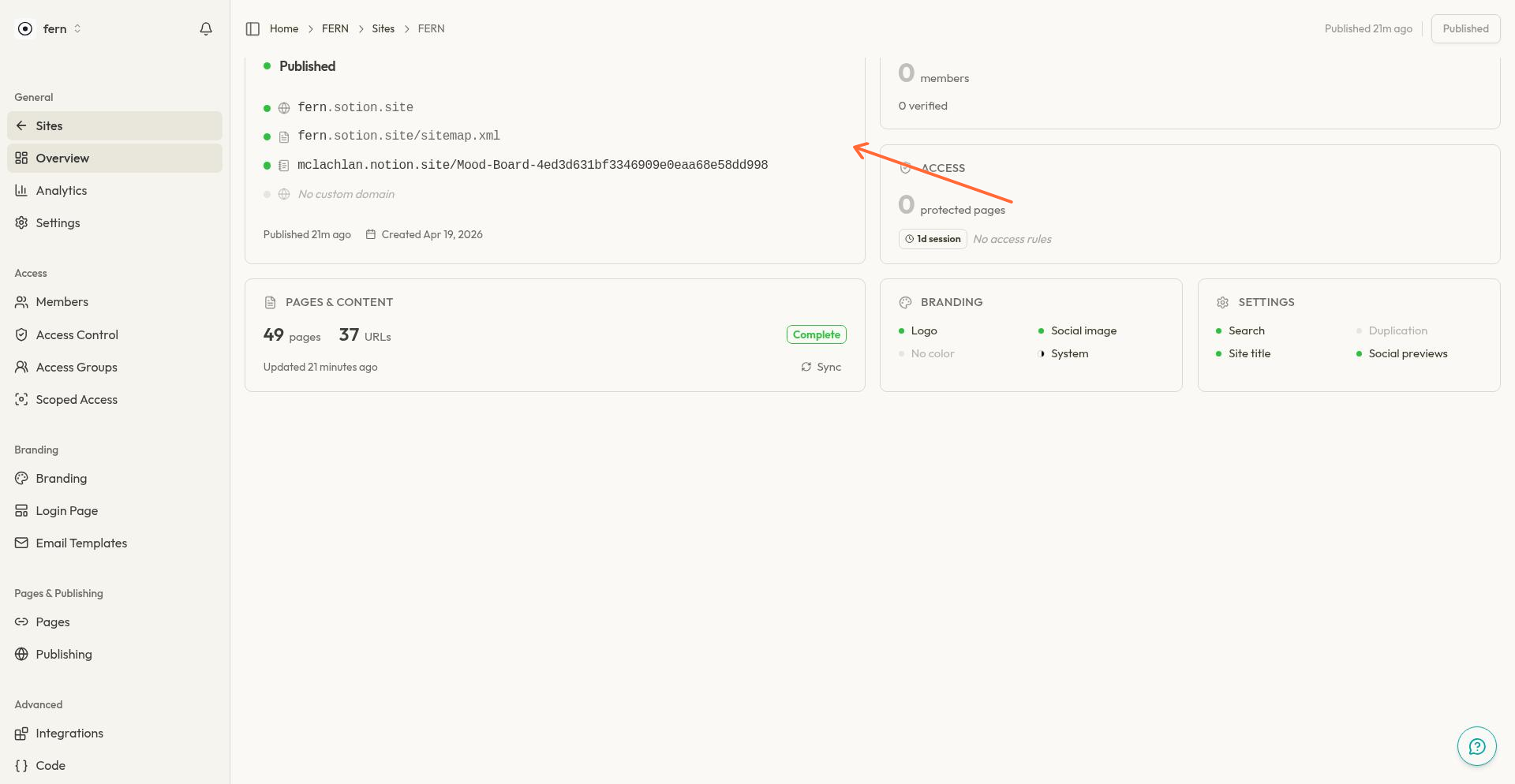
Displays:
Publish status (Published or Unpublished)
Custom domain status
Last published timestamp
Site creation date
Click to access the Publishing section where you configure your Notion source, site address, and custom domain.
Members Card
Shows your total member count and provides quick access to member management. Click to add, import, or manage site members and access groups.
Access Card
Displays a summary of your access control setup. Click to configure page-level access rules such as password protection, email allowlists, and access group restrictions.
Pages & Content Card
Shows the number of pages synced from your Notion workspace. Click to manage your custom page slugs.
Branding Card
Indicates your branding configuration status. Click to customize your logo, colors, fonts, and visual theme.
Settings Card
Provides access to general site settings, configuration options, and site deletion.
Navigating to Other Sections
While the overview page provides quick access through its grid cards, you can also navigate to any section using the left sidebar menu. The sidebar organizes all management areas into groups: General, Access, Branding, Pages & Publishing, and Advanced.
What's Next
Set up Access Control to protect your pages
Configure Branding to customize your site's appearance
Explore all settings in the dashboard