
Site & Portal Settings
The Settings page in your site dashboard controls core configuration options for your Sotion portal. It's organized as a series of cards, each focusing on a specific area of your site's behavior.
Access your site settings by navigating to your site dashboard and selecting Settings from the navigation menu.
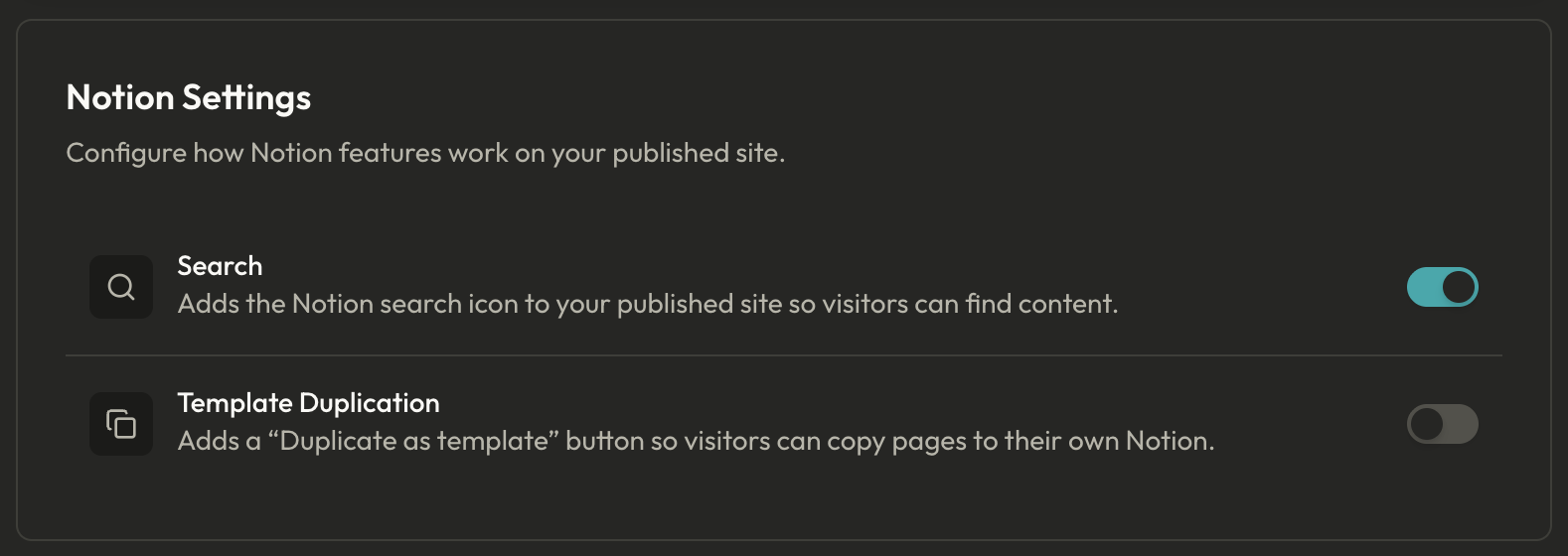
Notion Settings
The Notion Settings card controls how your Notion content integrates with your published portal.
Search
Enable the Search toggle to add the Notion search icon to your published site. This allows visitors to search your content directly from the portal, making it easier for them to find specific pages or information.
Template Duplication
Enable the Template Duplication toggle to add a "Duplicate as template" button to your pages. This lets visitors copy pages to their own Notion workspace, which is useful if you're sharing templates, worksheets, or resources meant to be customized by your audience.
Display Settings
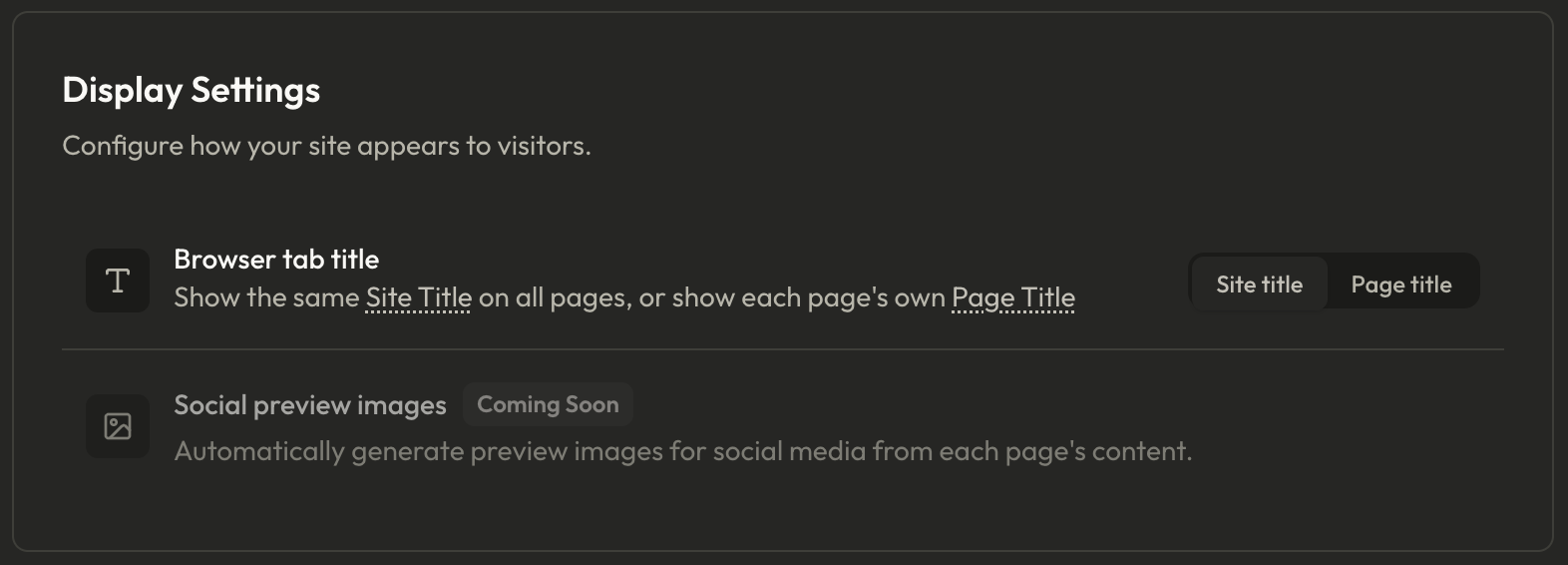
The Display Settings card controls how your site appears in browsers and on social platforms.
Browser Tab Title
Configure what appears in the browser tab when visitors view your site. You have two options:
Site title: Displays your site's name in the browser tab across all pages.
Page title: Displays the current page's title in the browser tab, changing as visitors navigate.
Choose Page title if you want visitors to easily identify which page they're viewing when they have multiple tabs open.
Social Preview Images
Coming soon — This feature will automatically generate Open Graph images from your page content, improving how your links appear when shared on social media and messaging platforms.
Membership Settings
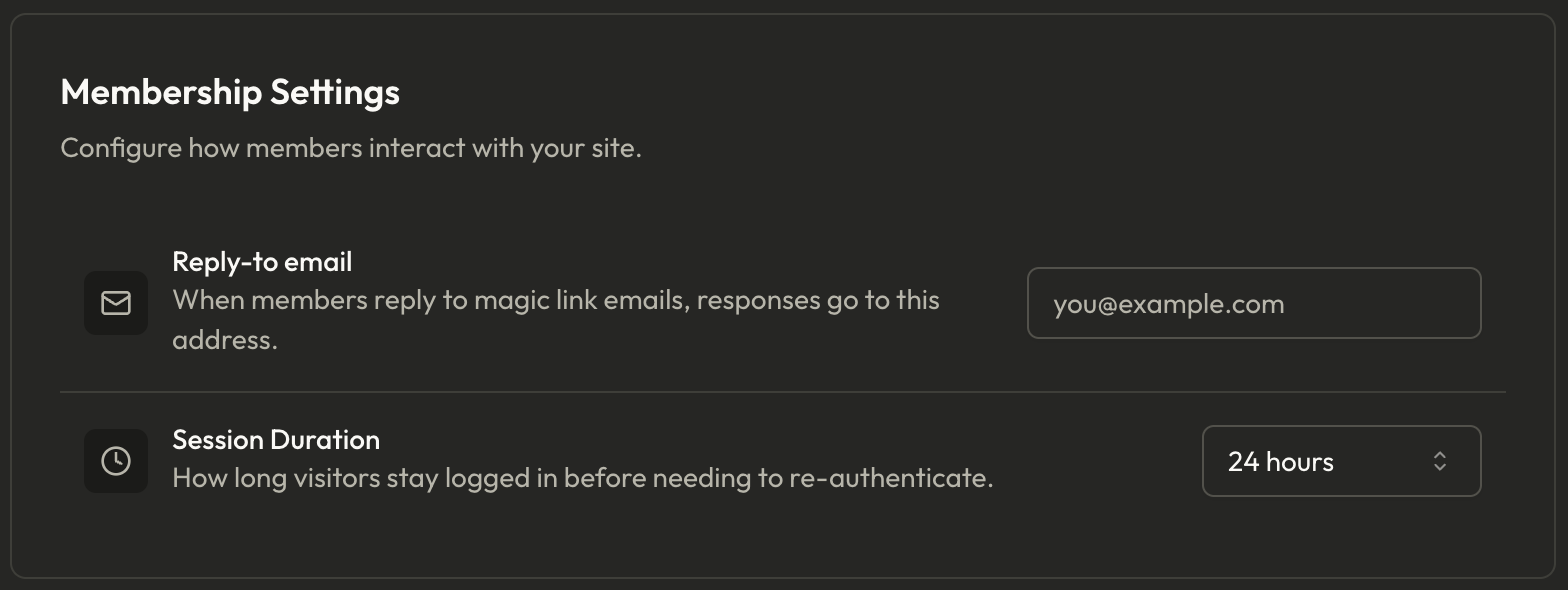
If your site has membership enabled, this card controls member-related configuration.
Reply-to Email
Set the email address that appears in the "Reply-to" field when members reply to emails from your site. This ensures member responses go to the right inbox rather than a no-reply address.
Session Duration
Control how long members remain logged in before needing to authenticate again. Available options:
1 hour
4 hours
12 hours
24 hours
7 days
30 days
365 days
Choose a shorter duration for sensitive content or internal portals. Longer durations improve the member experience for content hubs and membership sites where frequent logins would be frustrating.
Security Settings
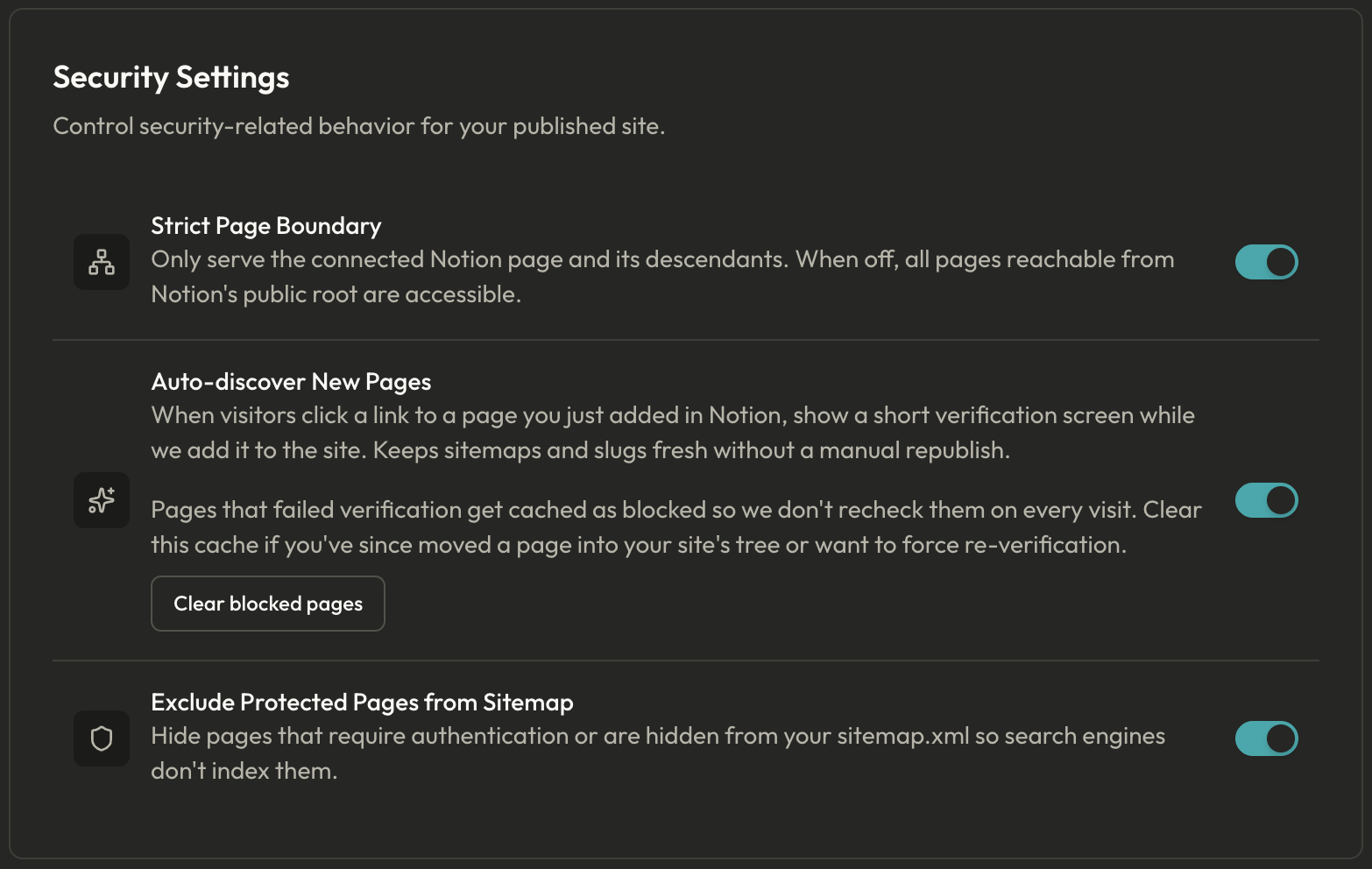
The Security Settings card controls how your site handles page visibility and access boundaries.
Strict Page Boundary
Enable this to enforce strict access boundaries on your pages. When enabled, visitors can only access pages explicitly included in your page tree, even if they know the URL of other pages within your connected Notion workspace.
This is essential for when your Notion workspace contains links to pages that should never be accessible through your portal.
Auto-discover New Pages
Enable this to automatically add new pages to your portal when they're first accessed via your Sotion site. When enabled, new sub-pages under your root page become accessible without manually adding them.
When auto-discovery is enabled, you'll see a Clear blocked pages action. This removes any pages that were previously blocked from auto-discovery, allowing them to be discovered again.
Exclude Protected Pages from Sitemap
Enable this to prevent password-protected and access-controlled pages from appearing in your site's sitemap. This improves SEO by ensuring search engines only index your public content, and prevents private page URLs from being discoverable through sitemap files.
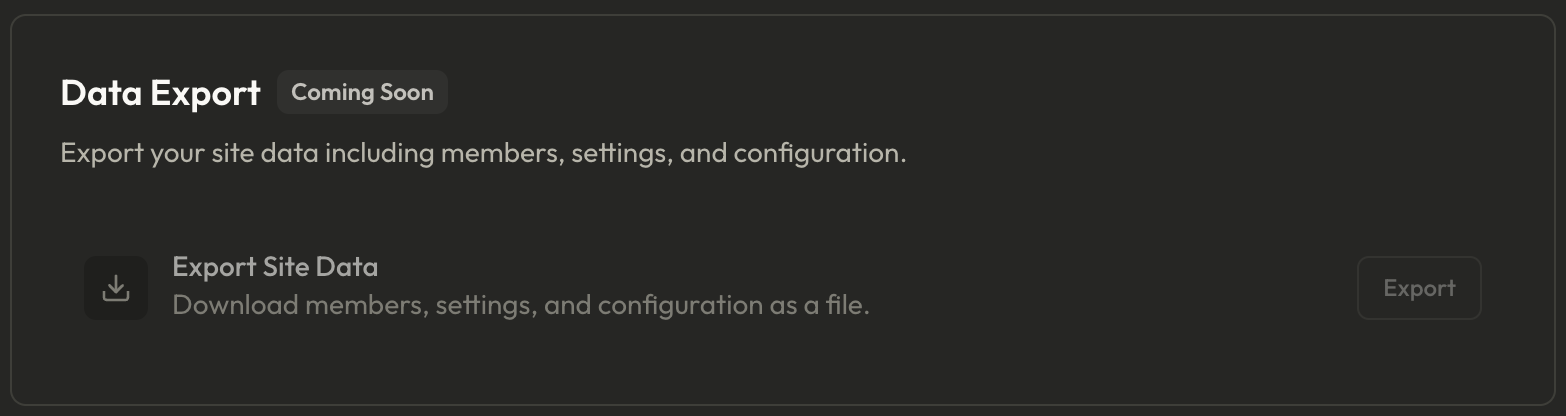
Data Export
Coming soon — This feature will allow you to download your site's members, settings, and configuration as a file, making it easy to back up your data or migrate to another system.
Danger Zone
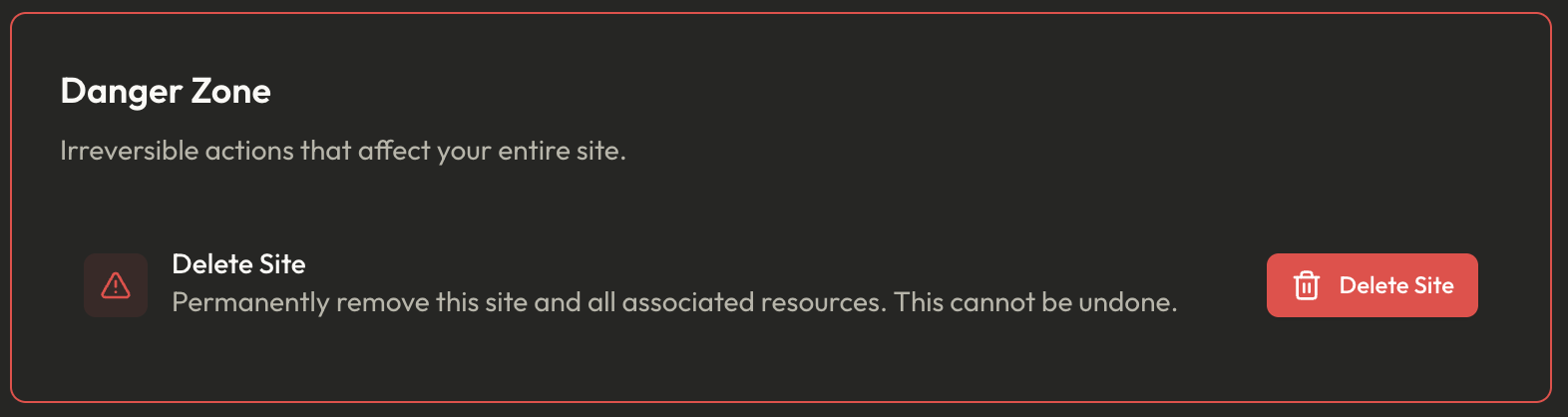
The Danger Zone contains destructive actions that permanently affect your site.
Delete Site
This action permanently deletes your site and all associated data. This cannot be undone. Your custom domain will be released, all member data will be removed, and your Notion pages will no longer be published through Sotion.
Before deleting a site, ensure you've removed any DNS records pointing to Sotion from your custom domain configuration if you plan to use that domain elsewhere.
Deleting a site is immediate and irreversible. Make sure you have any important member data or configuration notes saved elsewhere before proceeding.
Related Settings
Several configuration areas are managed on separate pages within your site dashboard:
Branding: Logo, favicon, colors, fonts, and visual styling
Code & Headers: Custom CSS, JavaScript, and response headers
Access Control: Page-level protection rules, passwords, and access groups
Domains: Custom domain setup and SSL configuration
Analytics: Site and member analytics (Pro+ plans)
Integrations: API access, webhooks, and third-party connections
Each of these areas has its own dedicated page in your site dashboard navigation, allowing for focused configuration of each aspect of your portal.